Meru Bot
Overview
Meru Bot is a virtual assistant integrated into the Data Governance Tool to provide real-time support and simplify issue resolution through an automated ticketing system.
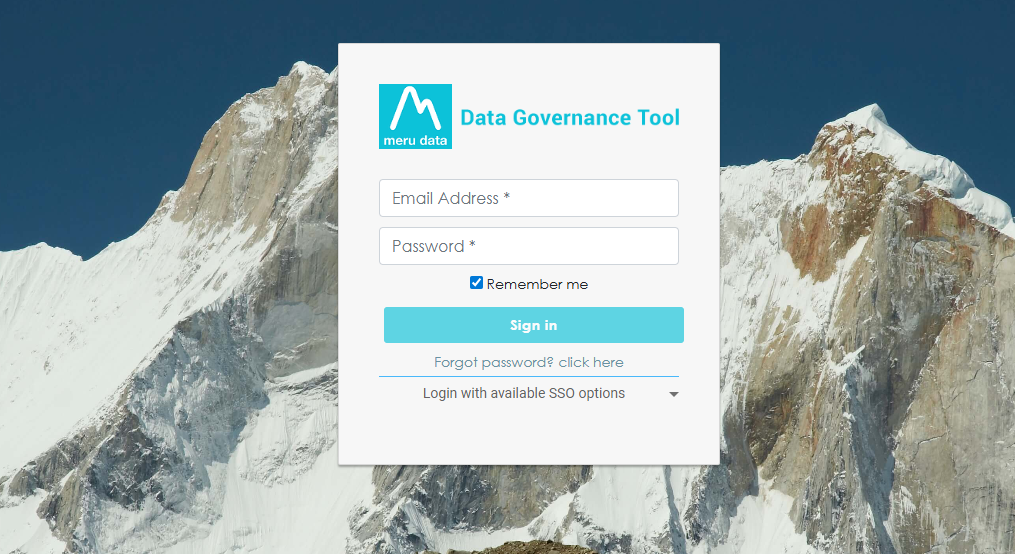
- Login to the Data Governance Tool by entering your credentials.
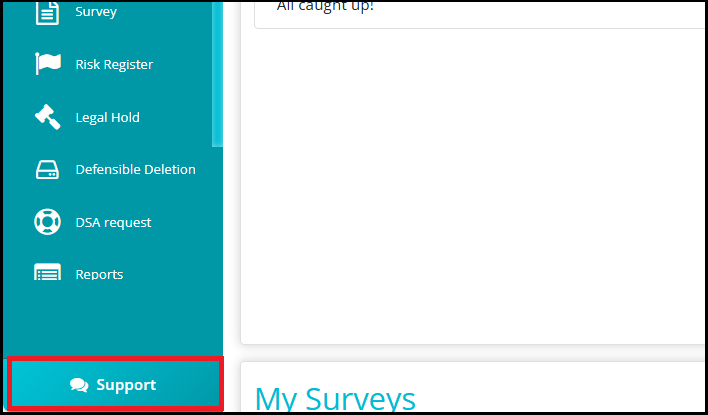
- Locate the Support button at the bottom of the sidebar. Click on it to access the support section or help with resources.
- After clicking the Support button, the MeruData Agent, a virtual assistant will open on the right side of your current page, allowing you to interact and raise a ticket for any issue.
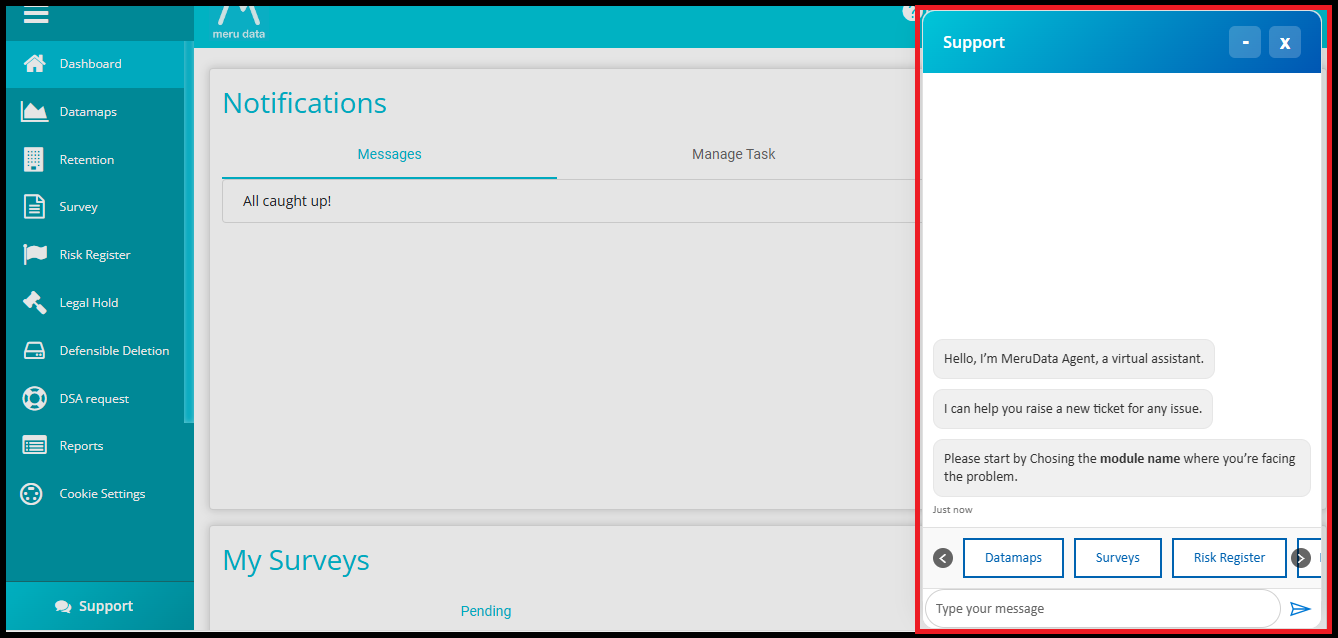
- To start creating a ticket, the user needs to select the specific module where the issue is occurring.
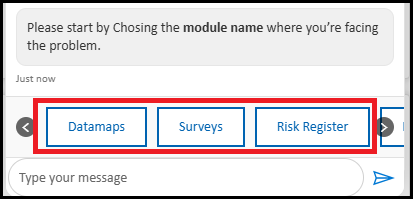
- After selecting a module, Meru Bot will prompt you to describe the issue you are facing.
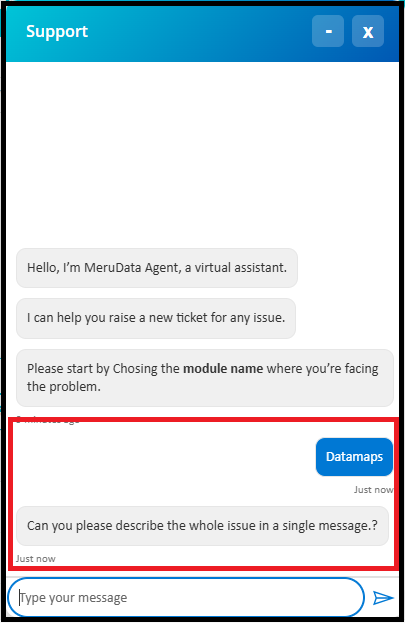
- Provide the complete details of the problem in a single message, as shown in the example below.
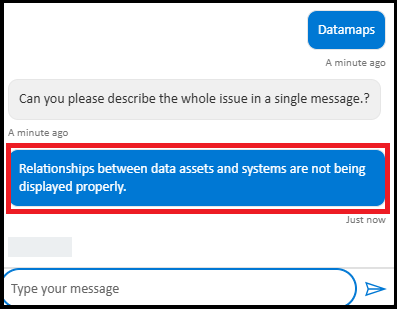
Once you provide the issue details, the Meru Bot will automatically create a ticket for your query. A confirmation message will appear along with a Ticket Summary, which includes:
Module: The module where the issue occurred (e.g., Datamaps).
Title: A brief title summarizing the issue.
Description: The detailed problem you entered.
Reported By: The email of the user who raised the ticket.
Ticket ID: A unique identifier for your ticket (e.g., TIC-25).
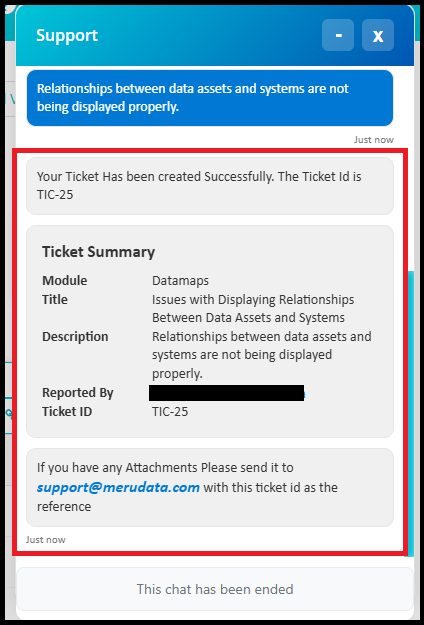
- If you have any attachments related to the issue, you can send them to "support@merudata.com" using the Ticket ID as a reference. Please note that files cannot be attached directly in the chat, so we provide this email address for submitting any supporting documents.

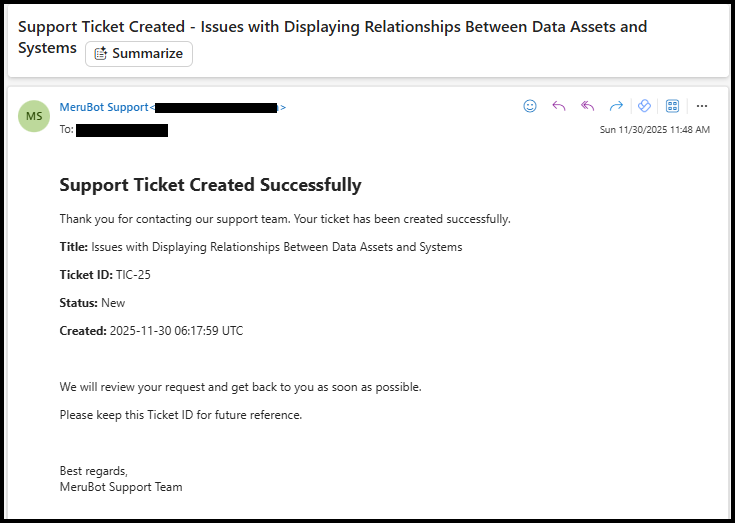
After the ticket is created, you will also receive a confirmation email. This email includes:
Title: A brief summary of the issue.
Ticket ID: A unique identifier for your ticket (e.g., TIC-25).
Status: Current status of the ticket (e.g., New).
Created: Date and time when the ticket was generated.
The email confirms that your request has been logged and will be reviewed. Please keep the Ticket ID for future reference.
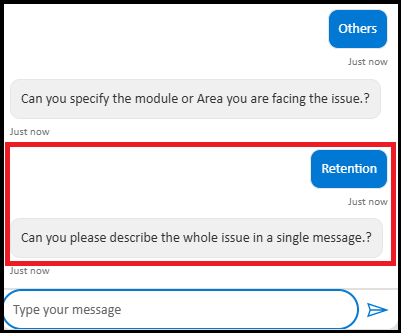
- If the problem does not relate to any of the listed modules, there is an additional option called 'Others' that can be selected.

- If you select the 'Others' option, Meru Bot will first ask you to specify the module or area where you are facing the issue.

After you provide the module name, you will then be prompted to describe the complete issue in a single message.
The remaining process --- ticket creation, Ticket Summary display, and email confirmation will follow the same steps as discussed above.
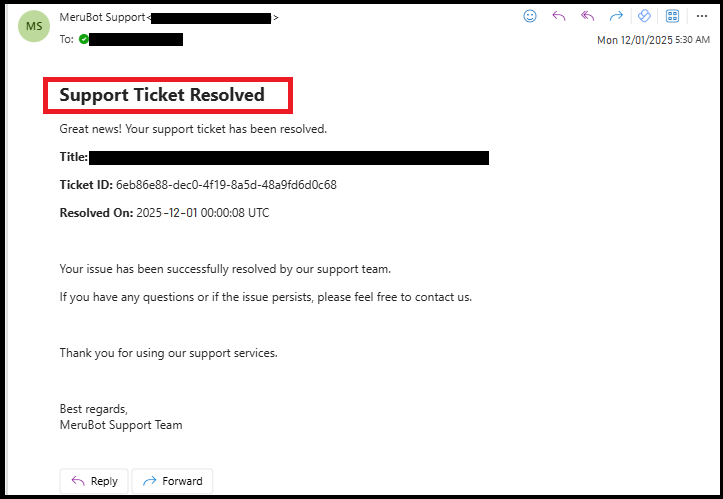
Once the issue is resolved, you will receive an email notification confirming that your support ticket has been successfully closed. The email includes:
Title: A brief summary of the issue.
Ticket ID: The unique identifier for your ticket.
Resolved On: Date and time when the ticket was marked as resolved.
- You can click the '-' icon to minimize the Support tab and the 'X' icon to close it.

Please note the following usage limits:
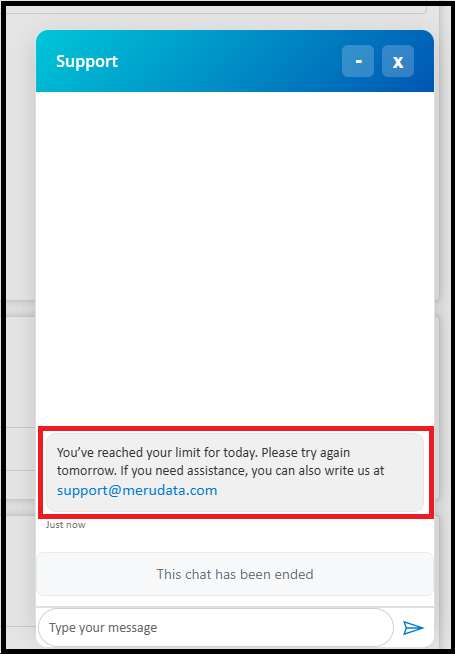
You can open and close ("X") the Support tab only 10 times within 24 hours. After that, you will be blocked for 24 hours.
You can create a maximum of 3 tickets per day. If you attempt to create a 4th ticket within 24 hours, your access will be blocked for 24 hours.